MoreRSS

site iconLixueduan | 李学端修改

博客名:指月小筑。专注云原生,Go,坚持分享最佳实践、经验干货。
请复制 RSS 到你的阅读器,或快速订阅到 :

Inoreader Feedly Follow Feedbin Local Reader

Lixueduan | 李学端的 RSS 预览

Kubernetes GPU 虚拟化实战:HAMi DRA 模式完整指南

2026-05-14 20:00:00

hami-dra-quickstart.jpg

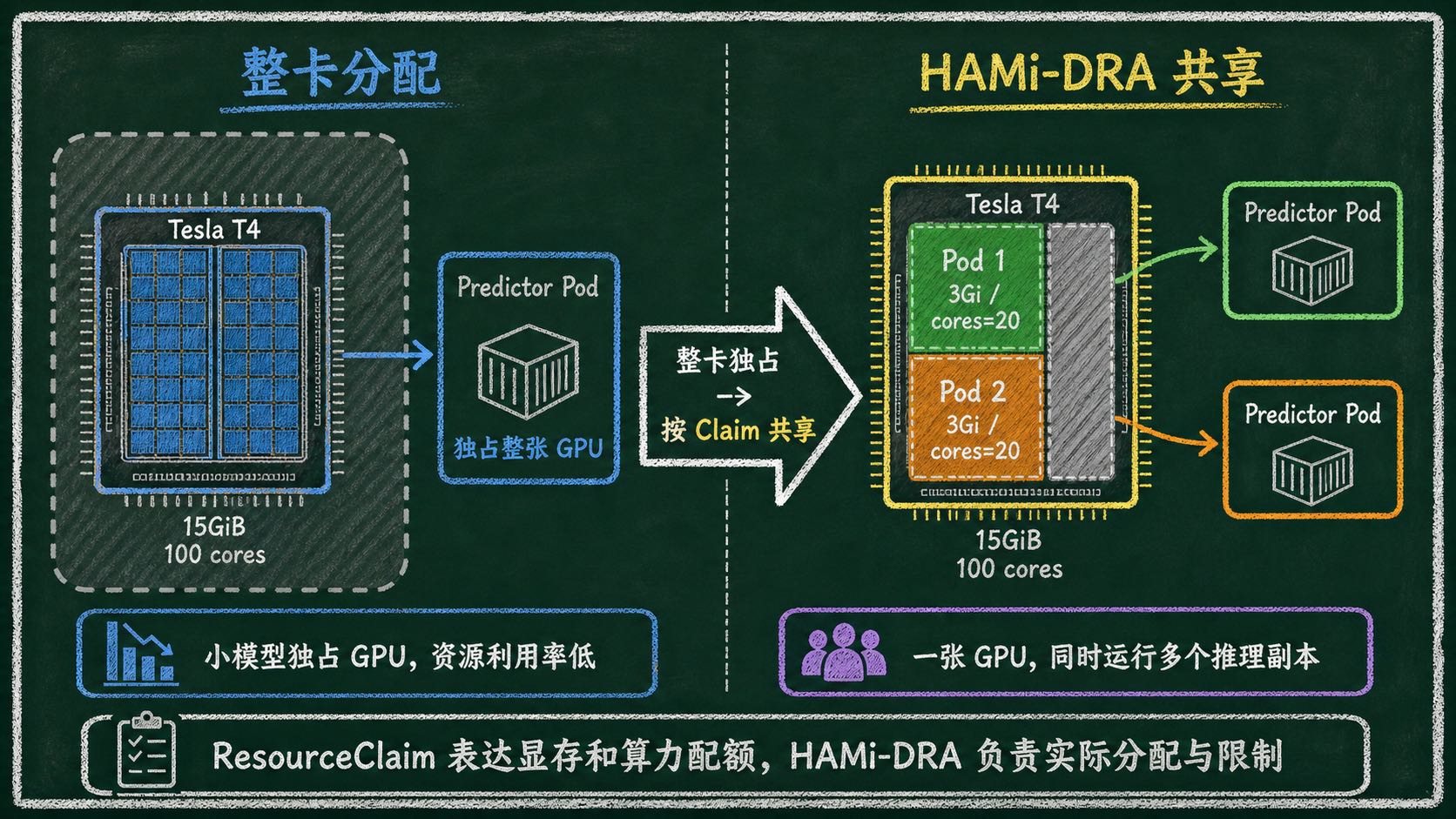
HAMi 是目前 Kubernetes 上最活跃的开源 vGPU 方案,能够将一块物理 GPU 按显存和算力细粒度地切分为多个虚拟 GPU,供不同 Pod 共享。

本文聚焦 HAMi DRA 模式的部署与使用:安装 HAMi DRA 驱动后,分别用原生模式和兼容模式提交 Pod,验证 GPU 切分是否生效。


Kubernetes 在 1.34 中正式 GA 了 DRA(Dynamic Resource Allocation,动态资源分配)。DRA 的核心改进是让调度器参与资源分配,在 Pod 调度阶段就精确匹配设备属性,避免了 DevicePlugin “调度到节点后才发现资源不够” 的问题。

HAMi 最近的版本已经正式接入了 DRA,用户既可以使用原生 DRA 模式,也可以用 DevicePlugin 兼容模式无缝迁移。

什么是 HAMi

HAMi(异构 AI 计算虚拟化中间件)是一个用于管理 Kubernetes 集群中异构 AI 计算设备的开源平台。前身为 k8s-vGPU-scheduler,HAMi 可在多个容器和工作负载之间实现设备共享。

HAMi 是云原生计算基金会(CNCF)的 Sandbox 项目,并被收录于 CNCF 技术全景图和 CNAI 技术全景图。

HAMi 生态全景

核心特性

设备共享

  • 多设备支持:兼容多种异构 AI 计算设备(GPU、NPU 等)
  • 共享访问:多个容器可同时共享设备,提高资源利用率

内存管理

  • 硬限制:在容器内强制执行严格的内存限制,防止资源冲突
  • 动态分配:根据工作负载需求按需分配设备内存
  • 灵活单位:支持按 MB 或占总设备内存百分比的方式指定内存分配

设备规格

  • 类型选择:可请求特定类型的异构 AI 计算设备
  • UUID 定向:使用设备 UUID 精确指定特定设备

易用性

  • 对工作负载透明:容器内无需修改代码
  • 简单部署:使用 Helm 轻松安装和卸载,配置简单

开放治理

  • 社区驱动:由互联网、金融、制造业、云服务等多个领域的组织联合发起
  • 中立发展:作为开源项目由 CNCF 管理

HAMi 安装

前提条件:

  • K8s 1.34 及以上版本,同时开启 DRAConsumableCapacity Feature Gate

    • 1.34-1.35 DRAConsumableCapacity 默认未开启,需要手动配置
  • Container Runtime 必须开启 CDI

  • NVIDIA GPU 驱动 440 及以上版本

特别是第一条,DRAConsumableCapacity 在 1.36 才默认开启,1.34、1.35 需手动配置。

GPU Operator 安装

安装 GPU Operator 时需要关闭 DevicePlugin:

1
2
3
4
5
6
7
8
helm repo add nvidia https://helm.ngc.nvidia.com/nvidia && helm repo update

helm upgrade --install --wait gpu-operator \
 -n gpu-operator --create-namespace \
 nvidia/gpu-operator \
 --version=v26.3.1 \
 --set driver.enabled=true \
 --set devicePlugin.enabled=false

--set devicePlugin.enabled=false:关闭 DevicePlugin,避免与后续安装的 DRA Driver 冲突。

安装 cert-manager

HAMi DRA Webhook 需要 TLS 证书,因此需要提前安装 cert-manager 用于自动签发。

1
2
3
4
5
6
helm repo add cert-manager https://charts.jetstack.io
helm repo update

helm install cert-manager cert-manager/cert-manager \
 -n cert-manager --create-namespace \
 --set crds.enabled=true

Helm 安装 HAMi

为节点打上 gpu=on 标签,未标记的节点不会被 HAMi 接管。

1
2
3
#kubectl label nodes {nodeid} gpu=on

kubectl label nodes ecs-a10-sh gpu=on

使用以下命令添加 HAMi 图表仓库:

1
helm repo add hami-charts https://project-hami.github.io/HAMi/

用以下命令进行安装:

1
2
# 核心是通过 --set dra.enabled=true 开启 DRA 模式
helm -n hami-system install hami hami-charts/hami --set dra.enabled=true --create-namespace

注意:DRA 模式与传统模式不兼容,请勿同时启用。

另外如果 GPU 驱动是主机预装,非 GPU Operator 安装,则安装时需额外指定:

1
--set hami-dra.drivers.nvidia.containerDriver=false

验证

正常情况下,会在 hami-system 下启动以下 Pod

1
2
3
4
5
root@ECS-A10-SH:/data/nfs/shared-skills-cicd# k -n hami-system get po
NAME READY STATUS RESTARTS AGE
hami-dra-driver-kubelet-plugin-hflbh 1/1 Running 0 2m49s
hami-hami-dra-monitor-7b484d5f95-rlkcg 1/1 Running 0 22m
hami-hami-dra-webhook-64bfdc6b86-d4nlr 1/1 Running 0 22m

使用

查看 ResourceSlice

查看 dra-driver 是否正常发布 resourceslice:

1
2
3
root@ECS-A10-SH:/data/nfs/shared-skills-cicd# kubectl get resourceslice
NAME NODE DRIVER POOL AGE
ecs-a10-sh-hami-core-gpu.project-hami.io-hnn6d ecs-a10-sh hami-core-gpu.project-hami.io ecs-a10-sh 119s

详情如下:

 1
 2
 3
 4
 5
 6
 7
 8
 9
10
11
12
13
14
15
16
17
18
19
20
21
22
23
24
25
26
27
28
29
30
31
32
33
34
35
36
37
38
39
40
41
42
43
44
45
46
47
48
49
50
51
52
53
root@ECS-A10-SH:/data/nfs/shared-skills-cicd# kubectl get resourceslice ecs-a10-sh-hami-core-gpu.project-hami.io-hnn6d -oyaml
apiVersion: resource.k8s.io/v1
kind: ResourceSlice
metadata:
 creationTimestamp: "2026-05-13T09:28:56Z"
 generateName: ecs-a10-sh-hami-core-gpu.project-hami.io-
 generation: 1
 name: ecs-a10-sh-hami-core-gpu.project-hami.io-hnn6d
 ownerReferences:
 - apiVersion: v1
 controller: true
 kind: Node
 name: ecs-a10-sh
 uid: 76c7db94-fe0b-44ea-9b07-8bdb6132888b
 resourceVersion: "61417761"
 uid: 46d46b45-108e-45e3-98f2-000a091571d3
spec:
 devices:
 - attributes:
 architecture:
 string: Ampere
 brand:
 string: Nvidia
 cudaComputeCapability:
 version: 8.6.0
 cudaDriverVersion:
 version: 12.4.0
 driverVersion:
 version: 550.144.3
 minor:
 int: 0
 pcieBusID:
 string: 0000:65:01.0
 productName:
 string: NVIDIA A10
 resource.kubernetes.io/pcieRoot:
 string: pci0000:64
 type:
 string: hami-gpu
 uuid:
 string: GPU-f1c7d08c-ae21-13e7-0de0-9eb14ff71eaf
 capacity:
 cores:
 value: "100"
 memory:
 value: 23028Mi
 name: hami-gpu-0
 driver: hami-core-gpu.project-hami.io
 nodeName: ecs-a10-sh
 pool:
 generation: 1
 name: ecs-a10-sh
 resourceSliceCount: 1

可以看到,ResourceSlice 记录了 GPU 的架构、型号、显存等信息。

提交任务:DRA 原生模式

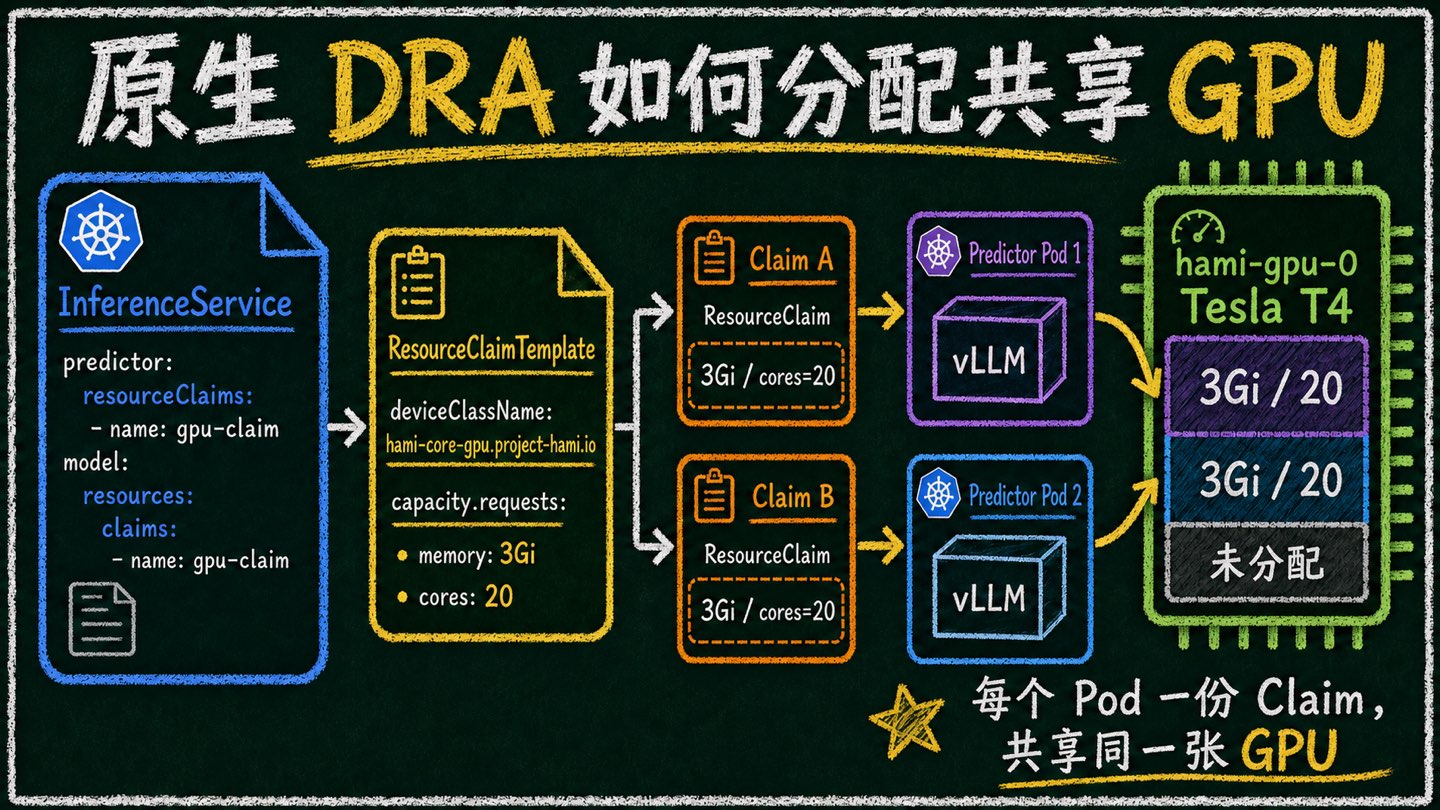
DRA 原生使用流程是先创建 ResourceClaim,然后创建 Pod 使用该 ResourceClaim。

DRA 资源分配流程

提交任务

ResourceClaim 以及对应 Pod 完整 yaml 如下:

 1
 2
 3
 4
 5
 6
 7
 8
 9
10
11
12
13
14
15
16
17
18
19
20
21
22
23
24
25
26
27
28
29
30
31
32
33
34
35
36
# DRA 原生模式 - 手动创建 ResourceClaim
# 申请 10G 显存 + 50 cores 的 A10 GPU

apiVersion: resource.k8s.io/v1
kind: ResourceClaim
metadata:
 name: gpu-half-claim
spec:
 devices:
 requests:
 - name: gpu
 exactly:
 deviceClassName: hami-core-gpu.project-hami.io
 allocationMode: ExactCount
 count: 1
 capacity:
 requests:
 cores: 50
 memory: "10Gi"
---
apiVersion: v1
kind: Pod
metadata:
 name: gpu-test-dra-native
spec:
 containers:
 - name: cuda
 image: 172.31.0.2:5000/nvidia/cuda:13.0.1-base-ubi9
 command: ["sleep", "3600"]
 resources:
 claims:
 - name: gpu
 resourceClaims:
 - name: gpu
 resourceClaimName: gpu-half-claim
 restartPolicy: Never

查看调度情况

通过 ResourceClaim 可以看到资源分配情况:

 1
 2
 3
 4
 5
 6
 7
 8
 9
10
11
12
13
14
15
16
17
18
19
20
21
22
23
24
25
26
27
28
29
30
31
32
33
34
35
36
37
38
39
40
41
42
43
44
45
46
47
root@ECS-A10-SH:~/lixd/deploy/gpu/hami/examples# k get po
NAME READY STATUS RESTARTS AGE
gpu-test-dra-native 1/1 Running 0 88s
root@ECS-A10-SH:~/lixd/deploy/gpu/hami/examples# k get resourceclaim
NAME STATE AGE
gpu-half-claim allocated,reserved 21s
root@ECS-A10-SH:~/lixd/deploy/gpu/hami/examples# k get resourceclaim gpu-half-claim -oyaml
apiVersion: resource.k8s.io/v1
kind: ResourceClaim
metadata:
 name: gpu-half-claim
 namespace: default
spec:
 devices:
 requests:
 - exactly:
 allocationMode: ExactCount
 capacity:
 requests:
 cores: "50"
 memory: 10Gi
 count: 1
 deviceClassName: hami-core-gpu.project-hami.io
 name: gpu
status:
 allocation:
 devices:
 results:
 - consumedCapacity:
 cores: "50"
 memory: 10Gi
 device: hami-gpu-0
 driver: hami-core-gpu.project-hami.io
 pool: ecs-a10-sh
 request: gpu
 shareID: 6108e68f-a7ec-4a30-9782-634885c0c728
 nodeSelector:
 nodeSelectorTerms:
 - matchFields:
 - key: metadata.name
 operator: In
 values:
 - ecs-a10-sh
 reservedFor:
 - name: gpu-test-dra-native
 resource: pods
 uid: d99dc6df-092c-4f3a-ac55-cfb88c017af7

效果

Pod 中执行 nvidia-smi 看到显存是我们申请的 10G,说明 HAMi 生效了。

 1
 2
 3
 4
 5
 6
 7
 8
 9
10
11
12
13
14
15
16
17
18
19
20
21
22
23
[HAMI-core Msg(51:140707774973760:libvgpu.c:870)]: Initializing.....
Wed May 13 10:58:20 2026
+-----------------------------------------------------------------------------------------+
| NVIDIA-SMI 550.144.03 Driver Version: 550.144.03 CUDA Version: 13.0 |
|-----------------------------------------+------------------------+----------------------+
| GPU Name Persistence-M | Bus-Id Disp.A | Volatile Uncorr. ECC |
| Fan Temp Perf Pwr:Usage/Cap | Memory-Usage | GPU-Util Compute M. |
| | | MIG M. |
|=========================================+========================+======================|
| 0 NVIDIA A10 On | 00000000:65:01.0 Off | 0 |
| 0% 32C P8 22W / 150W | 0MiB / 10240MiB | 0% Default |
| | | N/A |
+-----------------------------------------+------------------------+----------------------+

+-----------------------------------------------------------------------------------------+
| Processes: |
| GPU GI CI PID Type Process name GPU Memory |
| ID ID Usage |
|=========================================================================================|
| No running processes found |
+-----------------------------------------------------------------------------------------+
[HAMI-core Msg(51:140707774973760:multiprocess_memory_limit.c:703)]: Cleanup on exit for PID 51
[HAMI-core Msg(51:140707774973760:multiprocess_memory_limit.c:739)]: Exit cleanup complete for PID 51

提交任务:DevicePlugin 兼容模式

原生 DRA 模式需要手动创建 ResourceClaim,对存量业务不够友好。

为了便于大家迁移,HAMi 提供了兼容模式:用户仍然像 DevicePlugin 那样申请资源,由 HAMi DRA Webhook 自动拦截并转换为 ResourceClaim,调度器分配后再挂载到 Pod。

提交任务

和使用 DevicePlugin 一样,正常在 resources 中申请资源即可:

 1
 2
 3
 4
 5
 6
 7
 8
 9
10
11
12
13
14
15
16
17
18
# 兼容模式 - 按传统方式申请 GPU,HAMi webhook 自动转换为 ResourceClaim
# 申请 1 块 GPU,10Gi 显存 + 50% 算力

apiVersion: v1
kind: Pod
metadata:
 name: gpu-test-compatible
spec:
 containers:
 - name: cuda
 image: 172.31.0.2:5000/nvidia/cuda:13.0.1-base-ubi9
 command: ["sleep", "3600"]
 resources:
 limits:
 nvidia.com/gpu: 1
 nvidia.com/gpumem: 10240
 nvidia.com/gpucores: 50
 restartPolicy: Never

查看调度情况

HAMi 会根据 nvidia.com/gpumemnvidia.com/gpucores 自动生成 ResourceClaim,并绑定到 Pod。

对应的 ResourceClaim 如下:

 1
 2
 3
 4
 5
 6
 7
 8
 9
10
11
12
13
14
15
16
17
18
19
20
21
22
23
24
25
26
27
28
29
30
31
32
33
34
35
36
37
38
39
40
41
42
43
44
45
46
47
48
49
50
51
52
53
root@ECS-A10-SH:~/lixd/deploy/gpu/hami/examples# k get resourceclaim
NAME STATE AGE
default-gpu-test-compatible-cuda allocated,reserved 2m47s
root@ECS-A10-SH:~/lixd/deploy/gpu/hami/examples# k get resourceclaim default-gpu-test-compatible-cuda -oyaml
apiVersion: resource.k8s.io/v1
kind: ResourceClaim
metadata:
 creationTimestamp: "2026-05-13T11:14:06Z"
 finalizers:
 - resource.kubernetes.io/delete-protection
 name: default-gpu-test-compatible-cuda
 namespace: default
 resourceVersion: "61451167"
 uid: 8212ef37-f71c-45ca-ac4a-f94ead923eef
spec:
 devices:
 requests:
 - exactly:
 allocationMode: ExactCount
 capacity:
 requests:
 cores: "50"
 memory: "10737418240"
 count: 1
 deviceClassName: hami-core-gpu.project-hami.io
 selectors:
 - cel:
 expression: device.attributes["hami-core-gpu.project-hami.io"].type ==
 "hami-gpu"
 name: gpu
status:
 allocation:
 devices:
 results:
 - consumedCapacity:
 cores: "50"
 memory: 10Gi
 device: hami-gpu-0
 driver: hami-core-gpu.project-hami.io
 pool: ecs-a10-sh
 request: gpu
 shareID: a8dba99f-7841-41ad-9f07-5ec39ddee543
 nodeSelector:
 nodeSelectorTerms:
 - matchFields:
 - key: metadata.name
 operator: In
 values:
 - ecs-a10-sh
 reservedFor:
 - name: gpu-test-compatible
 resource: pods
 uid: 173a6d7f-665b-4b2d-961c-f550d70f7484

核心配置:

 1
 2
 3
 4
 5
 6
 7
 8
 9
10
spec:
 devices:
 requests:
 - exactly:
 allocationMode: ExactCount
 capacity:
 requests:
 cores: "50"
 memory: "10737418240"
 count: 1

对比原始 Pod 的资源申请:

1
2
3
4
5
resources:
 limits:
 nvidia.com/gpu: 1
 nvidia.com/gpumem: 10240
 nvidia.com/gpucores: 50

Webhook 转换映射关系:

原始资源申请 ResourceClaim 字段
nvidia.com/gpu: 1 requests.count: 1
nvidia.com/gpumem: 10240 requests.capacity.memory
nvidia.com/gpucores: 50 requests.capacity.cores

效果

同样的,显存为 10240M,说明 HAMi 也生效了。

 1
 2
 3
 4
 5
 6
 7
 8
 9
10
11
12
13
14
15
16
17
18
19
20
21
22
23
24
root@ECS-A10-SH:~/lixd/deploy/gpu/hami/examples# k exec -it gpu-test-compatible -- nvidia-smi
[HAMI-core Msg(57:139707024262976:libvgpu.c:870)]: Initializing.....
Wed May 13 11:21:39 2026
+-----------------------------------------------------------------------------------------+
| NVIDIA-SMI 550.144.03 Driver Version: 550.144.03 CUDA Version: 13.0 |
|-----------------------------------------+------------------------+----------------------+
| GPU Name Persistence-M | Bus-Id Disp.A | Volatile Uncorr. ECC |
| Fan Temp Perf Pwr:Usage/Cap | Memory-Usage | GPU-Util Compute M. |
| | | MIG M. |
|=========================================+========================+======================|
| 0 NVIDIA A10 On | 00000000:65:01.0 Off | 0 |
| 0% 32C P8 22W / 150W | 0MiB / 10240MiB | 0% Default |
| | | N/A |
+-----------------------------------------+------------------------+----------------------+

+-----------------------------------------------------------------------------------------+
| Processes: |
| GPU GI CI PID Type Process name GPU Memory |
| ID ID Usage |
|=========================================================================================|
| No running processes found |
+-----------------------------------------------------------------------------------------+
[HAMI-core Msg(57:139707024262976:multiprocess_memory_limit.c:703)]: Cleanup on exit for PID 57
[HAMI-core Msg(57:139707024262976:multiprocess_memory_limit.c:739)]: Exit cleanup complete for PID 57

小结

本文围绕 HAMi DRA 模式完成了从安装到验证的完整实践:

  1. 部署 HAMi DRA:关闭 DevicePlugin 后通过 Helm 安装 HAMi,开启 dra.enabled=true
  2. DRA 原生模式:手动创建 ResourceClaim 声明显存与算力,Pod 通过 resourceClaim 引用
  3. DevicePlugin 兼容模式:沿用传统 nvidia.com/gpu 等资源申请,HAMi DRA Webhook 自动转换为 ResourceClaim,存量业务零改造即可迁移

两种模式的核心差异在于 ResourceClaim 的创建方式——原生模式手动管理、兼容模式自动生成,底层调度与切分逻辑一致。

DRA P2---理解 DRA:ResourceSlice、Claim、Class 三角关系

2026-05-13 04:00:00

dra-p2.jpg

在上一篇 DRA P1:DRA 能解决什么问题?从部署到使用的完整体验 中,我们部署了 DRA 并成功运行了第一个 GPU Pod。DRA 相比 DevicePlugin 最大的区别在于:资源展示更详细,资源申请也更灵活。靠三个 API 对象来实现:ResourceSlice、DeviceClass、ResourceClaim。

那么这三个对象各自干什么,它们之间怎么配合?本篇就来回答这个问题。

1. 从 CSI 看 DRA:同一套设计思路

如果对 K8s 比较熟悉的同学就会发现,DRA 的设计思路和 CSI 有点类似,DRA 把异构设备的管理拆成了同样的三层:

CSI vs DRA 三层架构对比


存储 (CSI) 设备 (DRA) 谁创建
供给 PV ResourceSlice 驱动 (Driver)
分类 StorageClass DeviceClass 管理员 (Admin)
需求 PVC ResourceClaim 用户 (User)

ps:严格来说 ResourceSlice 和 PV 不能完全等同——PV 是一块具体的存储卷,ResourceSlice 更像是节点上设备的目录清单。但从供需关系看,模式是一样的:

  • CSI:PV 代表可用存储 → StorageClass 分类 → PVC 申请。
  • DRA:ResourceSlice 代表可用设备 → DeviceClass 分类 → ResourceClaim 申请。

DRA 三者之间的关系,按数据流方向串起来就是:

1
2
ResourceSlice ──→ DeviceClass ──→ ResourceClaim ──→ 调度器分配
 (供给) (分类) (需求) (决策)
  • ResourceSlice:DRA 驱动发布节点上的设备信息,包括型号、显存、驱动版本等属性,以及可用容量
  • DeviceClass:管理员用 CEL 表达式从 ResourceSlice 的设备属性中筛选出一类设备形成用户友好的分组,比如"所有 NVIDIA GPU"或"仅 A100"
  • ResourceClaim:用户通过 deviceClassName 引用某个 DeviceClass,声明需要几个该类设备
  • 调度器:综合 ResourceSlice 的库存和 ResourceClaim 的需求,选出满足条件的节点和具体设备,完成分配

逐个来看。

2. ResourceSlice:资源提供方(Driver 视角)

2.1 从 DevicePlugin 到 ResourceSlice

ResourceSlice 是 DRA 驱动向集群"公告"设备信息的方式, 可以理解为是对 DevicePlugin 提供的 nvidia.com/gpu:4 这个信息的扩展。

1
2
3
4
5
6
7
8
9
root@GB200-POD2-F06-Node05:~# kubectl get node gb200-pod2-f06-node05 -oyaml|grep "capacity:" -A 7
 capacity:
 cpu: "144"
 ephemeral-storage: 1840577300Ki
 hugepages-2Mi: "0"
 hugepages-16Gi: "0"
 hugepages-512Mi: "0"
 memory: 1002716864Ki
 nvidia.com/gpu: "4"

HAMi 提供的 hami-device-plugin-nvidia 为了能够感知 GPU 显存信息,也是只能通过给节点打 Annotations 方式实现,DRA 中的 ResourceSlice 则是原生支持了这些。

推荐阅读:HAMi VGPU 原理分析 Part1:hami-Device-Plugin-Nvidia 实现

2.2 结构

一个标准的 ResourceSlice 内容如下所示:

 1
 2
 3
 4
 5
 6
 7
 8
 9
10
11
12
13
14
15
16
17
18
19
20
21
22
23
24
25
26
27
28
29
30
31
32
33
34
35
36
37
apiVersion: resource.k8s.io/v1
kind: ResourceSlice
metadata:
 name: gb200-pod2-f06-node05-gpu.nvidia.com-j7ggv
 ownerReferences:
 - apiVersion: v1
 controller: true
 kind: Node
 name: gb200-pod2-f06-node05
spec:
 devices:
 - attributes:
 addressingMode:
 string: ATS
 architecture:
 string: Blackwell
 brand:
 string: Nvidia
 cudaComputeCapability:
 version: 10.0.0
 driverVersion:
 version: 580.126.20
 productName:
 string: NVIDIA GB200
 type:
 string: gpu
 uuid:
 string: GPU-137d7996-cb8e-7683-e47d-9c99e6f49eb5
 capacity:
 memory:
 value: 189471Mi
 name: gpu-0
 # ... 省略 gpu-1, gpu-2, gpu-3 的类似内容
 driver: gpu.nvidia.com
 nodeName: gb200-pod2-f06-node05
 pool:
 name: gb200-pod2-f06-node05

可以看到,相比 DevicePlugin 只能报一个 nvidia.com/gpu:4 数量信息,ResourceSlice 把 GPU 架构、型号、显存、驱动版本都暴露出来了。有了这些信息,“只要 A100”、“显存大于 40Gi 的 GPU"这类调度策略才能做到。

  • driver:DRA 驱动

  • nodeName:资源所属节点

  • pool:资源池,对于本地资源,名称一般是节点名

  • attributes:描述设备固有特性的键值对,用于标识和选择设备

    • 比如 GPU 架构、型号等
  • capacity:设备可分配的资源量(如 GPU 显存),DRAConsumableCapacity 特性启用后可被多个 ResourceClaim 按容量共享消耗

3. DeviceClass:资源分类标准(Admin 视角)

DeviceClass 定义了"什么样的设备属于这一类”,一般由 DRA Driver 或者集群管理员创建。

一个完整的 DeviceClass 内容如下:

 1
 2
 3
 4
 5
 6
 7
 8
 9
10
11
12
13
14
15
16
17
18
19
root@GB200-POD2-F06-Node05:~# k get deviceclass gpu.nvidia.com -oyaml
apiVersion: resource.k8s.io/v1
kind: DeviceClass
metadata:
 annotations:
 meta.helm.sh/release-name: nvidia-dra-driver-gpu
 meta.helm.sh/release-namespace: nvidia-dra-driver-gpu
 creationTimestamp: "2026-04-22T02:08:27Z"
 generation: 1
 labels:
 app.kubernetes.io/managed-by: Helm
 name: gpu.nvidia.com
 resourceVersion: "52725555"
 uid: 2e700a15-2392-4c7f-9467-26bf6249b71a
spec:
 selectors:
 - cel:
 expression: device.driver == 'gpu.nvidia.com' && device.attributes['gpu.nvidia.com'].type
 == 'gpu'

3.1 CEL 选择器

DeviceClass 的关键是 CEL 选择器:

1
2
3
4
spec:
 selectors:
 - cel:
 expression: device.driver == 'gpu.nvidia.com' && device.attributes['gpu.nvidia.com'].type == 'gpu'

这表示:驱动为 gpu.nvidia.com 且类型为 gpu 的设备才属于这个 Class

CEL 表达式可以组合任意属性条件。比如管理员可以创建一个只包含高端 GPU 的 DeviceClass:

 1
 2
 3
 4
 5
 6
 7
 8
 9
10
11
apiVersion: resource.k8s.io/v1
kind: DeviceClass
metadata:
 name: gpu.nvidia.com-a100
spec:
 selectors:
 - cel:
 expression: |
 device.driver == 'gpu.nvidia.com' &&
 device.attributes['gpu.nvidia.com'].type == 'gpu' &&
 device.attributes['gpu.nvidia.com'].productName == 'NVIDIA A100'

这样用户只需要在 ResourceClaim 中指定 deviceClassName: gpu.nvidia.com-a100,就能精确地申请到 A100,而无需关心 CEL 表达式的写法。

DevicePlugin 只能通过 gpu.nvidia.com:1 指定数量,GPU 型号管不了,得靠 nodeSelector 之类的方式绕路。DRA 直接在 Claim 里选 Class 就行。

说白了,DeviceClass 就是把 CEL 的复杂性藏起来——管理员写规则,用户选 Class。

3.2 config:设备级配置

DeviceClass 还可以在 config 字段中定义传递给 DRA 驱动的配置参数:

 1
 2
 3
 4
 5
 6
 7
 8
 9
10
11
12
spec:
 selectors:
 - cel:
 expression: device.driver == 'gpu.nvidia.com' && device.attributes['gpu.nvidia.com'].type == 'gpu'
 config:
 - opaque:
 driver: gpu.nvidia.com
 parameters:
 apiVersion: v1
 kind: GPUConfig
 spec:
 enablePersistence: true

当 Kubelet 调用驱动的 NodePrepareResources 准备设备时,会将这些配置传递给驱动。管理员在 Class 级别统一设置设备参数,不用每个用户单独配。

目前 NVIDIA DRA 驱动对 config 的支持还在完善中,具体可配置项参考驱动文档。

3.3 extendedResourceName:兼容模式

extendedResourceName 是 DeviceClass 中的一个字段,开启后匹配该 Class 的设备可以通过 Pod 的扩展资源请求(resources.requests/limits)来使用,不用写 ResourceClaim。调度器会负责资源核算,确保不会超分配。

DeviceClass 中指定 extendedResourceName

1
2
3
4
5
6
7
8
9
apiVersion: resource.k8s.io/v1
kind: DeviceClass
metadata:
 name: nvidia-gpu-class
spec:
 extendedResourceName: nvidia.com/gpu
 selectors:
 - cel:
 expression: 'device.driver == "gpu.nvidia.com"'

Pod 按传统方式申请即可:

 1
 2
 3
 4
 5
 6
 7
 8
 9
10
apiVersion: v1
kind: Pod
spec:
 containers:
 - name: container
 resources:
 requests:
 nvidia.com/gpu: 1
 limits:
 nvidia.com/gpu: 1

extendedResourceName 是 Alpha 特性,需要启用 DRAExtendedResource feature gate 才能生效。该特性在 Kubernetes 1.34/1.35 默认关闭,1.36 开始默认开启。

4. ResourceClaim:资源需求方(User 视角)

ResourceClaim 是用户对资源的"采购订单",描述需要什么设备、需要多少。

4.1 两种声明方式

4.1.1 ResourceClaimTemplate:Pod 级别声明

上一篇我们用了 ResourceClaimTemplate

 1
 2
 3
 4
 5
 6
 7
 8
 9
10
11
12
13
apiVersion: resource.k8s.io/v1
kind: ResourceClaimTemplate
metadata:
 name: single-gpu
spec:
 spec:
 devices:
 requests:
 - name: gpu
 exactly:
 deviceClassName: gpu.nvidia.com
 allocationMode: ExactCount
 count: 1

随 Pod 创建而自动生成 ResourceClaim,Pod 删除时自动回收。适合"一个 Pod 用一份资源"的场景。

4.1.2 ResourceClaim:独立声明(支持跨 Pod 共享)

单独创建的 ResourceClaim 有独立的生命周期,可以跨 Pod 共享。适合"多个 Pod 共用同一份资源"的场景(如 GPU 共享)。

是的,DRA 默认就支持 GPU 共享。多个 Pod 同时引用同一个 Claim,获得同一个设备的访问权,本质是共享同一块 GPU。效果和 DevicePlugin 的 TimeSlicing 方案类似。

关于 TimeSlicing 方案推荐阅读这篇文章:一文搞懂 GPU 共享方案: NVIDIA Time Slicing

例如:

 1
 2
 3
 4
 5
 6
 7
 8
 9
10
11
12
13
14
15
16
17
18
19
20
21
22
23
24
25
26
27
28
29
30
31
32
33
34
35
36
37
38
39
40
41
42
43
44
45
46
47
# 共享的 ResourceClaim
apiVersion: resource.k8s.io/v1
kind: ResourceClaim
metadata:
 name: shared-gpu
spec:
 devices:
 requests:
 - name: gpu
 exactly:
 deviceClassName: gpu.nvidia.com
 allocationMode: ExactCount
 count: 1
---
# Pod A 引用共享 Claim
apiVersion: v1
kind: Pod
metadata:
 name: pod-a
spec:
 resourceClaims:
 - name: gpu
 resourceClaimName: shared-gpu  # 直接引用独立 Claim
 containers:
 - name: app
 image: nvidia/cuda:12.1.0-base-ubuntu22.04
 command: ["nvidia-smi", "-L"]
 resources:
 claims:
 - name: gpu
---
# Pod B 引用同一个 Claim
apiVersion: v1
kind: Pod
metadata:
 name: pod-b
spec:
 resourceClaims:
 - name: gpu
 resourceClaimName: shared-gpu  # 同一个 Claim
 containers:
 - name: app
 image: nvidia/cuda:12.1.0-base-ubuntu22.04
 command: ["nvidia-smi", "-L"]
 resources:
 claims:
 - name: gpu

Pod A 和 Pod B 共享同一个 GPU 设备,调度器会将它们调度到同一节点,分配同一个设备。

结果如下:

1
2
3
4
root@GB200-POD2-F06-Node05:~/lixd/dra/test# k logs -f pod-a
GPU 0: NVIDIA GB200 (UUID: GPU-f6c15dc5-4024-fb95-39e6-5089c0c100c8)
root@GB200-POD2-F06-Node05:~/lixd/dra/test# k logs -f pod-b
GPU 0: NVIDIA GB200 (UUID: GPU-f6c15dc5-4024-fb95-39e6-5089c0c100c8)

4.2 分配模式

ResourceClaim 支持两种分配模式:

 1
 2
 3
 4
 5
 6
 7
 8
 9
10
# 模式一:精确数量
exactly:
 deviceClassName: gpu.nvidia.com
 allocationMode: ExactCount
 count: 2 # 恰好需要 2 个 GPU

# 模式二:全部满足
all:
 deviceClassName: gpu.nvidia.com
 allocationMode: All  # 需要节点上该 Class 下的全部设备

All 模式本质是:我要这个节点这个资源池里的所有设备。

只有当该节点上该 Class 下的所有设备均未被占用时,分配才会成功;否则分配失败(除非设置了 adminAccess)。适合分布式训练这类需要独占节点全部 GPU 的场景。

4.3 额外选择条件

除了通过 deviceClassName 限定设备范围,ResourceClaim 还可以添加额外的 CEL 选择条件,进一步缩小匹配范围:

 1
 2
 3
 4
 5
 6
 7
 8
 9
10
11
spec:
 devices:
 requests:
 - name: training-gpu
 exactly:
 deviceClassName: gpu.nvidia.com
 selectors:
 - cel:
 expression: device.attributes['gpu.nvidia.com'].productName == 'NVIDIA GB200'
 allocationMode: ExactCount
 count: 2

这里虽然引用的是通用的 gpu.nvidia.com Class,但通过额外选择条件限定只匹配 GB200 GPU。

4.4 跨设备约束

当请求多个设备时,可以用 constraints 定义跨设备的约束条件:

 1
 2
 3
 4
 5
 6
 7
 8
 9
10
11
spec:
 devices:
 requests:
 - name: gpu
 exactly:
 deviceClassName: gpu.nvidia.com
 allocationMode: ExactCount
 count: 2
 constraints:
 - matchAttribute: productName
 - matchAttribute: cudaComputeCapability

matchAttribute: productName 表示:分配的 2 个 GPU 必须是相同型号。

matchAttribute: cudaComputeCapability 则是确保 CUDA 兼容性。

matchAttribute 配置主要匹配 ResourceSlice 中的 devices.attributes 参数,保证所有设备都有同样的参数。

5. 三角协作:从设备发布到 Pod 启动

三个对象各自干什么搞清楚了,接下来看它们怎么配合完成一次资源分配。以下流程以上篇的 gpu-test-pod 为例。

DRA 资源分配流程

5.1 阶段一:设备注册(DRA Driver → ResourceSlice)

1
2
3
4
5
DRA Driver 启动
 ├─ 1. 扫描节点上的 GPU 设备
 ├─ 2. 收集设备属性(型号、显存、驱动版本等)
 └─ 3. 创建/更新 ResourceSlice

DRA 驱动以 DaemonSet 方式运行在每个节点上,持续 watch 设备状态。设备变化时(新增、移除、健康状态变化),驱动更新对应的 ResourceSlice 并递增 pool.generation

5.2 阶段二:分类定义(Admin → DeviceClass)

1
2
3
4
5
6
管理员创建 DeviceClass
 ├─ 1. 确定设备筛选规则(如"所有 NVIDIA GPU")
 ├─ 2. 编写 CEL 表达式
 │ 例如:expression: device.driver == 'gpu.nvidia.com'
 └─ 3. 创建 DeviceClass,供用户引用

DeviceClass 是管理员对 ResourceSlice 中设备的分类标准。驱动把原始设备信息发布到集群后,管理员通过 DeviceClass 告诉用户"有哪些设备类别可用"。

例如创建一个通用的 NVIDIA GPU 类别:

1
2
3
4
5
6
7
8
apiVersion: resource.k8s.io/v1
kind: DeviceClass
metadata:
 name: gpu.nvidia.com
spec:
 selectors:
 - cel:
 expression: device.driver == 'gpu.nvidia.com'

用户不需要理解 CEL 语法,只需知道 deviceClassName: gpu.nvidia.com 代表"NVIDIA GPU"。管理员写好规则,用户选 Class 就行——跟 CSI 里选 StorageClass 一个道理。

5.3 阶段三:用户声明需求(ResourceClaim / Template)

用户根据 DeviceClass 创建 ResourceClaim,声明需要什么设备、需要多少。上一篇我们用的是 ResourceClaimTemplate

 1
 2
 3
 4
 5
 6
 7
 8
 9
10
11
12
13
apiVersion: resource.k8s.io/v1
kind: ResourceClaimTemplate
metadata:
 name: single-gpu
spec:
 spec:
 devices:
 requests:
 - name: gpu
 exactly:
 deviceClassName: gpu.nvidia.com
 allocationMode: ExactCount
 count: 1

也可以直接创建独立的 ResourceClaim(适合跨 Pod 共享的场景)。

无论哪种方式,都是通过 deviceClassName: gpu.nvidia.com 引用 DeviceClass,告诉调度器"我需要这个类别的设备"。

与 DevicePlugin 只能指定数量不同,ResourceClaim allocationMode 除了 ExactCount 之外还支持 All 模式,不指定数量,直接占用该节点该 class 下的全部设备。适合分布式训练等需要独占所有 GPU 的场景。

5.4 阶段四:创建 Pod 并触发调度

用户创建 Pod,通过 resourceClaims 引用 Template:

 1
 2
 3
 4
 5
 6
 7
 8
 9
10
11
12
13
14
apiVersion: v1
kind: Pod
metadata:
 name: gpu-test-pod
spec:
 containers:
 - name: cuda-container
 image: nvidia/cuda:12.1.0-base-ubuntu22.04
 resources:
 claims:
 - name: gpu-claim
 resourceClaims:
 - name: gpu-claim
 resourceClaimTemplateName: single-gpu

Pod 提交后,调度流程如下:

 1
 2
 3
 4
 5
 6
 7
 8
 9
10
11
12
13
14
15
16
17
18
Pod 提交到 API Server
 ├─ 1. ResourceClaim Controller 根据 Template 创建 ResourceClaim
 ├─ 2. 调度器 Filter
 │ → 遍历节点,基于 ResourceSlice 判断:
 │ - 先通过 DeviceClass CEL 筛选符合 Class 的设备子集
 │ - 再结合 Claim selector 进一步过滤
 │ - 容量是否满足
 │ - 约束是否满足
 ├─ 3. 调度器 Reserve + Bind
 │ → 选定节点 + 选定具体设备
 │ → 写入 ResourceClaim.status.allocation(driver/pool/device)
 │ → 写入 ResourceClaim.status.reservedFor
 │ → 绑定 Pod 到节点
 └─ 4. Kubelet 启动 Pod

调度器不仅选节点,还选定了具体设备。Reserve 阶段调度器在内部缓存中完成设备选择,Bind 阶段将分配结果(哪个节点、哪个设备)写入 ResourceClaim.status.allocation,后续 Driver 和 Kubelet 都基于这个结果工作。

三个组件的分工:

组件 职责
Scheduler 选节点 + 选具体设备,写入 allocation
Driver 根据 allocation 结果准备设备(NodePrepareResources)
Kubelet 调用 Driver + 将设备注入容器

5.5 阶段五:设备准备与 Pod 启动

 1
 2
 3
 4
 5
 6
 7
 8
 9
10
11
12
13
14
Kubelet 收到绑定的 Pod
 ├─ 1. 查找 Pod 引用的 ResourceClaim
 │ → gpu-test-pod-gpu-claim-7rqsj (已 allocated + reserved)
 ├─ 2. 调用 DRA Plugin 的 NodePrepareResources
 │ ├─ 传入 ResourceClaim 的分配结果
 │ ├─ 驱动准备设备(配置 GPU、创建 CDI 描述文件)
 │ └─ 返回 CDI 设备 ID
 ├─ 3. Kubelet 将 CDI ID 传递给容器运行时
 └─ 4. 容器运行时根据 CDI 描述注入设备到容器
 → Pod 启动,nvidia-smi 可见 GPU

最终我们看到 P1 中的运行结果:

1
2
3
root@GB200-POD2-F06-Node05:~# kubectl logs gpu-test-pod
GPU 0: NVIDIA GB200 (UUID: GPU-137d7996-cb8e-7683-e47d-9c99e6f49eb5)
GPU allocation successful.

5.6 ResourceClaim 状态流转

ResourceClaim 状态流转

整个过程中 ResourceClaim 的状态变化:

状态 触发时机 含义
(创建) Pod 创建时由 Controller 生成 等待调度器处理
Allocated 调度器完成分配 已选定具体设备,写入 allocation 结果
Reserved Pod 绑定到节点 设备已预留给该 Pod,其他 Pod 不可使用

P1 中我们看到的 allocated,reserved 就是这两个状态的组合:

1
2
NAME STATE AGE
gpu-test-pod-gpu-claim-7rqsj allocated,reserved 37s

Pod 删除后,基于 Template 创建的 ResourceClaim 会随 Pod 一起被回收,设备回到可分配状态。若是独立创建的 ResourceClaim,Pod 删除后 allocation 被清除、Claim 回到 Pending,但 Claim 本身不会被删除,可被其他 Pod 重新引用。

6. 小结

概念 职责
ResourceSlice 设备目录,驱动发布设备信息
DeviceClass 分类标准,封装选择规则
ResourceClaim 资源订单,描述用户需求

协作流程:

  1. 驱动发布 ResourceSlice(设备注册)
  2. 管理员定义 DeviceClass(分类筛选)
  3. 用户创建 ResourceClaim/Pod(资源申请)
  4. 调度器综合三者的信息做分配决策
  5. Kubelet 调用驱动准备设备,容器获得 GPU

下一篇来看 DRA 的完整工作流和源码实现——调度器怎么分配、Kubelet 怎么准备设备,以及 NVIDIA DRA Driver 的源码。

DRA P1:DRA 能解决什么问题?从部署到使用的完整体验

2026-05-07 04:00:00

dra-p1.jpg

在 Kubernetes 里用 GPU 这类设备,大家习惯走 DevicePlugin。但 AI workload 越来越复杂,DevicePlugin 的短板越来越明显——没法描述设备属性,调度器不参与分配,Pod 经常调度到节点后才发现资源不够

DRA(Dynamic Resource Allocation,动态资源分配)就是 Kubernetes 针对这些问题推出的新框架。

DRA 核心功能在 Kubernetes 1.34 已 GA,可以放心用在生产环境。

1. DRA 解决什么问题?

DevicePlugin 的局限性

  • 只能上报"数量",无法描述设备属性

  • 调度器不参与分配,导致调度冲突

  • 不支持资源预留

DRA 的核心改进

  • 设备信息通过 ResourceSlice 进入 API Server,调度器可见

  • 精确的设备选择(通过 CEL 表达式)

  • 支持资源预留和共享

例如:

DevicePlugin:用户申请 1 个 GPU → 调度器随机选节点 → Kubelet 本地分配 -> Pod 启动后发现显存不够 OOM(比如你想要 A100 80GB,但被调度到了只有 V100 16GB 的节点,因为调度器无法区分 GPU 型号)

DRA:用户显式申请一个"显存>40Gi 的 GPU" → 调度器精确匹配 → 预分配成功 → Pod 正常启动

DevicePlugin vs DRA 对比

2. 部署环境

2.1 前置条件

  • K8s 相关:

    • Kubernetes v1.32 or newer.

    • DRA and corresponding API groups must be enabled.

  • Container Runtime 相关

    • CDI must be enabled in the underlying container runtime (such as containerd or CRI-O).

ps:K8s 最好 1.34+,Containerd 则是 v1.7.x 及以上。

v1.32+ 已内置(beta),v1.34 GA

2.2 GPU Operator 安装

NVIDIA 官方在推进将 DRA 也集成到 GPU Operator,不过目前还没有完成,需要分别安装。

安装 GPU Operator 时需要指定不安装 DevicePlugin,否则会和后续安装的 DRA GPU Plugin 冲突。

安装命令如下:

1
2
3
4
5
6
7
8
helm repo add nvidia https://helm.ngc.nvidia.com/nvidia && helm repo update
 
helm upgrade --install --wait gpu-operator \
 -n gpu-operator --create-namespace \
 nvidia/gpu-operator \
 --version=v26.3.1 \
 --set driver.enabled=true \
 --set devicePlugin.enabled=false

核心参数

1
2
# 关闭 DevicePlugin
--set devicePlugin.enabled=false

2.3 DRA 安装

NVIDIA 提供的 DRA Driver:dra-driver-nvidia-gpu ,包含了下面两个 plugin:

  • GPU Plugin:用于替代之前的 DevicePlugin,即:https://github.com/nvidia/k8s-device-plugin

  • ComputeDomain Plugin:此插件专门用于支持 Multi-Node NVLink (MNNVL),这是 NVIDIA GB200 NVL72 等新一代系统实现节点间 GPU 高速直连的关键技术。它引入 ComputeDomain 这一抽象概念,用于在多个 Pod(可能跨节点)之间自动建立并保障一个安全、隔离的 NVLink 通信域。

    • 大部分主流的 GPU 都是用不上这个功能的,默认关闭即可

安装命令如下:

1
2
3
4
5
6
7
helm upgrade --install nvidia-dra-driver-gpu nvidia/nvidia-dra-driver-gpu \
 --version="25.12.0" \
 --create-namespace \
 --namespace nvidia-dra-driver-gpu \
 --set resources.gpus.enabled=true \
 --set resources.computeDomains.enabled=false \
 --set nvidiaDriverRoot=/run/nvidia/driver

注意:在 KEP 5004 正式发布之前,resources.gpus.enabled=true的 DRA 驱动无法与标准的 NVIDIA GPU DevicePlugin 同时安装。两者会因管理相同的扩展资源(nvidia.com/gpu)而发生冲突。

可以通过 --set 'gpuResourcesEnabledOverride=true' 安装。

核心参数:

1
2
3
4
5
6
# 开启 GPU 插件,关闭 computeDomains 插件
 --set resources.gpus.enabled=true \
 --set resources.computeDomains.enabled=false \
# 对于使用 GPU Operator 安装的驱动,需要通过 nvidiaDriverRoot 参数指定下目录
# /run/nvidia/driver 正好是 GPU Operator 安装的位置
 --set nvidiaDriverRoot=/run/nvidia/driver 

2.4 验证

查看 ResourceSlice

对于 DevicePlugin 来说是通过直接在 node 的 capacity 字段上展示nvidia.com/gpu 来表示该节点上有多少张 GPU。

1
2
3
4
5
6
7
8
9
root@GB200-POD2-F06-Node05:~# kubectl get node gb200-pod2-f06-node05 -oyaml|grep "capacity:" -A 7
 capacity:
 cpu: "144"
 ephemeral-storage: 1840577300Ki
 hugepages-2Mi: "0"
 hugepages-16Gi: "0"
 hugepages-512Mi: "0"
 memory: 1002716864Ki
 nvidia.com/gpu: "4"

比如上面这个节点 capacity 信息,只能看出该节点有 4 张 GPU,但是其他的:型号、显存、拓扑等信息完全无法得知。

DRA 则是有单独的 ResourceSlice 对象记录详细信息

暂时忽略这里面的 compute-domain 资源

1
2
3
4
5
6
root@GB200-POD2-F06-Node05:~# kubectl get ResourceSlice
NAME NODE DRIVER POOL AGE
gb200-pod2-f06-node05-compute-domain.nvidia.com-ftn4j gb200-pod2-f06-node05 compute-domain.nvidia.com gb200-pod2-f06-node05 18s
gb200-pod2-f06-node05-gpu.nvidia.com-j7ggv gb200-pod2-f06-node05 gpu.nvidia.com gb200-pod2-f06-node05 18s
gb200-pod2-f06-node06-compute-domain.nvidia.com-bjwf4 gb200-pod2-f06-node06 compute-domain.nvidia.com gb200-pod2-f06-node06 18s
gb200-pod2-f06-node06-gpu.nvidia.com-bbv4b gb200-pod2-f06-node06 gpu.nvidia.com gb200-pod2-f06-node06 18s

gb200-pod2-f06-node05-gpu.nvidia.com-j7ggv 为例,查看详情:

 1
 2
 3
 4
 5
 6
 7
 8
 9
10
11
12
13
14
15
16
17
18
19
20
21
22
23
24
25
26
27
28
29
30
31
32
33
34
35
36
37
38
root@GB200-POD2-F06-Node05:~/lixd/dra/demo# kubectl get ResourceSlice gb200-pod2-f06-node05-gpu.nvidia.com-j7ggv -oyaml
apiVersion: resource.k8s.io/v1
kind: ResourceSlice
metadata:
 name: gb200-pod2-f06-node05-gpu.nvidia.com-j7ggv
 ownerReferences:
 - apiVersion: v1
 controller: true
 kind: Node
 name: gb200-pod2-f06-node05
spec:
 devices:
 - attributes:
 addressingMode:
 string: ATS
 architecture:
 string: Blackwell
 brand:
 string: Nvidia
 cudaComputeCapability:
 version: 10.0.0
 driverVersion:
 version: 580.126.20
 productName:
 string: NVIDIA GB200
 type:
 string: gpu
 uuid:
 string: GPU-137d7996-cb8e-7683-e47d-9c99e6f49eb5
 capacity:
 memory:
 value: 189471Mi
 name: gpu-0
 # ... 省略 gpu-1, gpu-2, gpu-3 的类似内容
 driver: gpu.nvidia.com
 nodeName: gb200-pod2-f06-node05
 pool:
 name: gb200-pod2-f06-node05

ResourceSlice 库存表

里面记录了节点上所有 GPU 的详细信息,关键属性包括:

  • type: string: gpu(设备类型)

  • architecture: string: Blackwell(GPU架构)

  • brand: string: Nvidia(品牌)

  • productName: string: NVIDIA GB200(产品名)

  • cudaComputeCapability: version: 10.0.0(计算能力)

  • driverVersion: version: 580.126.20(驱动版本)

  • resource.kubernetes.io/pciBusID(PCI总线地址)

容量 (capacity):目前只显示了 memory: 189471Mi

查看 DeviceClass

ResourceSlice展示了资源的‘库存清单’后,DeviceClass则定义了如何使用这些资源的‘筛选规则’。

1
2
3
4
5
6
7
root@GB200-POD2-F06-Node05:~# kubectl get deviceclass
NAME AGE
compute-domain-daemon.nvidia.com 122m
compute-domain-default-channel.nvidia.com 122m
gpu.nvidia.com 122m
mig.nvidia.com 122m
vfio.gpu.nvidia.com 122m

例如 gpu.nvidia.com deviceclass 内容如下:

 1
 2
 3
 4
 5
 6
 7
 8
 9
10
11
12
13
14
15
16
17
18
19
root@GB200-POD2-F06-Node05:~# kubectl get DeviceClass gpu.nvidia.com -oyaml
apiVersion: resource.k8s.io/v1
kind: DeviceClass
metadata:
 annotations:
 meta.helm.sh/release-name: nvidia-dra-driver-gpu
 meta.helm.sh/release-namespace: nvidia-dra-driver-gpu
 creationTimestamp: "2026-04-18T11:10:48Z"
 generation: 1
 labels:
 app.kubernetes.io/managed-by: Helm
 name: gpu.nvidia.com
 resourceVersion: "51521963"
 uid: c5143f4a-0dec-4eae-9bbc-a00c4d806159
spec:
 selectors:
 - cel:
 expression: device.driver == 'gpu.nvidia.com' && device.attributes['gpu.nvidia.com'].type
 == 'gpu'

DeviceClass 中通过 CEL 定义规则

1
2
3
cel:
 expression: device.driver == 'gpu.nvidia.com' && device.attributes['gpu.nvidia.com'].type
 == 'gpu'

含义如下:

  • 设备的驱动必须是 gpu.nvidia.com
  • 设备的类型必须是 gpu

满足这两个条件的设备就属于这个 DeviceClass。

3. 运行第一个 DRA GPU Pod

3.1 ResourceClaimTemplate

创建 ResourceClaimTemplate 申请一个 GPU

 1
 2
 3
 4
 5
 6
 7
 8
 9
10
11
12
13
14
apiVersion: resource.k8s.io/v1
kind: ResourceClaimTemplate
metadata:
 name: single-gpu
 namespace: default
spec:
 spec:
 devices:
 requests:
 - name: gpu 
 exactly:
 deviceClassName: gpu.nvidia.com # 匹配前面的 DeviceClass
 allocationMode: ExactCount
 count: 1 # 数量

3.2 Pod 申请 resourceClaim

然后创建 Pod 指定使用这个 resourceClaimTemplate,通过 resourceClaimTemplateName 指定名称进行关联。

 1
 2
 3
 4
 5
 6
 7
 8
 9
10
11
12
13
14
15
16
17
18
19
20
# gpu-test-pod.yaml
apiVersion: v1
kind: Pod
metadata:
 name: gpu-test-pod
 namespace: default
spec:
 containers:
 - name: cuda-container
 image: nvidia/cuda:12.1.0-base-ubuntu22.04
 command: ["bash", "-c"]
 args: ["nvidia-smi -L && echo 'GPU allocation successful.' && sleep 3600"]
 # 在容器中引用Pod级别声明的资源
 resources:
 claims:
 - name: gpu-claim
 # 声明Pod需要资源,并指定使用哪个模板
 resourceClaims:
 - name: gpu-claim
 resourceClaimTemplateName: single-gpu

3.3 验证

验证调度结果

 1
 2
 3
 4
 5
 6
 7
 8
 9
10
11
12
# 查看Pod状态和调度节点
kubectl get pod gpu-test-pod -o wide

# 查看Pod的详细事件,确认资源分配过程
kubectl describe pod gpu-test-pod

# 查看自动生成的ResourceClaim及其状态
kubectl get resourceclaim
kubectl describe resourceclaim <自动生成的claim名称>

# 查看Pod日志,确认GPU信息被正确识别
kubectl logs gpu-test-pod

Pod 状态和调度节点

1
2
3
root@GB200-POD2-F06-Node05:~/lixd/dra/demo# kubectl get pod gpu-test-pod -o wide
NAME READY STATUS RESTARTS AGE IP NODE NOMINATED NODE READINESS GATES
gpu-test-pod 1/1 Running 0 95s 172.25.114.35 gb200-pod2-f06-node05 <none> <none>

Pod 成功启动,并被调度器精确地分配到了拥有符合条件 GPU 的 gb200-pod2-f06-node05 节点。

resourceclaim 详情

 1
 2
 3
 4
 5
 6
 7
 8
 9
10
11
12
13
14
15
16
17
18
19
20
21
22
23
24
25
26
27
28
29
30
31
32
33
34
35
36
37
38
39
40
41
42
43
44
45
46
47
48
49
50
51
52
root@GB200-POD2-F06-Node05:~/lixd/dra/demo# kubectl get resourceclaim
NAME STATE AGE
gpu-test-pod-gpu-claim-7rqsj allocated,reserved 37s
root@GB200-POD2-F06-Node05:~/lixd/dra/demo# kubectl describe resourceclaim gpu-test-pod-gpu-claim-7rqsj
Name: gpu-test-pod-gpu-claim-7rqsj
Namespace: default
Labels: <none>
Annotations: resource.kubernetes.io/pod-claim-name: gpu-claim
API Version: resource.k8s.io/v1
Kind: ResourceClaim
Metadata:
 Creation Timestamp: 2026-04-19T06:26:52Z
 Finalizers:
 resource.kubernetes.io/delete-protection
 Generate Name: gpu-test-pod-gpu-claim-
 Owner References:
 API Version: v1
 Block Owner Deletion: true
 Controller: true
 Kind: Pod
 Name: gpu-test-pod
 UID: f92cb808-a813-419c-b111-7d9e4e402f59
 Resource Version: 51788271
 UID: 86e7f3f0-052b-4a61-8e4f-36e2020dd2fc
Spec:
 Devices:
 Requests:
 Exactly:
 Allocation Mode: ExactCount
 Count: 1
 Device Class Name: gpu.nvidia.com
 Name: gpu
Status:
 Allocation:
 Devices:
 Results:
 Device: gpu-0
 Driver: gpu.nvidia.com
 Pool: gb200-pod2-f06-node05
 Request: gpu
 Node Selector:
 Node Selector Terms:
 Match Fields:
 Key: metadata.name
 Operator: In
 Values:
 gb200-pod2-f06-node05
 Reserved For:
 Name: gpu-test-pod
 Resource: pods
 UID: f92cb808-a813-419c-b111-7d9e4e402f59
Events: <none>

查看 Pod 日志

查看 Pod 日志,成功分配了一个 GPU:

1
2
3
root@GB200-POD2-F06-Node05:~/lixd/dra/demo# kubectl logs gpu-test-pod
GPU 0: NVIDIA GB200 (UUID: GPU-137d7996-cb8e-7683-e47d-9c99e6f49eb5)
GPU allocation successful.

4. 小结

这篇文章带大家从零搭了一套 DRA 环境,跑通了第一个 GPU Pod。几个关键点:

  • ResourceSlice 是设备的"库存表",把 GPU 型号、显存、驱动版本都暴露给调度器
  • DeviceClass 用 CEL 表达式定义筛选规则,决定哪些设备归哪一类
  • ResourceClaim / ResourceClaimTemplate 是用户侧的"申购单",Pod 通过它拿到具体设备

和 DevicePlugin 最大的区别:调度器在做调度决策时就能看到设备的全部信息,不再盲选,可以做更精细的调度。

DRA(Dynamic Resource Allocation) 的引入,标志着 Kubernetes 在 资源管理 方向的重大演进。它不仅解决了现有资源管理模型的痛点,还为复杂的异构硬件管理提供了原生支持,例如 GPU、FPGA、高性能 NIC 等等。

月之暗面最强模型 Kimi-K2.6 正式开源 —— 附 vLLM 部署实战

2026-04-23 04:00:00

deploy-kimi-k2.6-by-vllm.jpeg

Kimi-K2.6 是 Moonshot AI 在 4 月 20 日正式发布并开源的旗舰大语言模型,具备强大的长上下文推理、多模态理解和工具调用能力。本文将详细介绍如何使用 vLLM 部署 Kimi-K2.6 模型,并附上性能基准测试。

1. 模型速览

根据各大榜单排名以及实测表现,Kimi-K2.6 在多项评测中表现出色,是当前开源模型中的佼佼者。

在 Artificial Analysis Intelligence Index 中得分如下: kimi-k2.6-rank.png

详细专项能力测评: kimi-k2.6-bench.jpeg

Arena AI Code Arena-WebDev 得分如下: kimi-k2.6-arena.jpeg

从榜单数据来看,Kimi-K2.6 和 GLM-5.1 各有千秋,二者也都基本达到了 Claude Opus 4.6 的水平。

2. 测试环境

本文所有测试均在以下环境完成:

 1
 2
 3
 4
 5
 6
 7
 8
 9
10
11
12
13
14
15
16
+-----------------------------------------------------------------------------------------+
| GPU Name Persistence-M | Bus-Id Disp.A | Volatile Uncorr. ECC |
| Fan Temp Perf Pwr:Usage/Cap | Memory-Usage | GPU-Util Compute M. |
|=========================================+========================+======================|
| 0 NVIDIA GB200 On | 00000008:01:00.0 Off | 0 |
| N/A 42C P0 395W / 1200W | 175750MiB / 189471MiB | 0% Default |
+-----------------------------------------+------------------------+----------------------+
| 1 NVIDIA GB200 On | 00000009:01:00.0 Off | 0 |
| N/A 42C P0 369W / 1200W | 175366MiB / 189471MiB | 0% Default |
+-----------------------------------------+------------------------+----------------------+
| 2 NVIDIA GB200 On | 00000018:01:00.0 Off | 0 |
| N/A 41C P0 354W / 1200W | 175366MiB / 189471MiB | 0% Default |
+-----------------------------------------+------------------------+----------------------+
| 3 NVIDIA GB200 On | 00000019:01:00.0 Off | 0 |
| N/A 42C P0 375W / 1200W | 179133MiB / 189471MiB | 0% Default |
+-----------------------------------------+------------------------+----------------------+

3. 模型下载

3.1 安装 HuggingFace CLI

首先安装 HuggingFace CLI 工具用于下载模型:

1
curl -LsSf https://hf.co/cli/install.sh | bash

3.2 下载模型

Kimi-K2.6 原生提供 Int4 精度版本,模型权重约需 595 GB 显存,加上推理时的 KV Cache,官方推荐最低显存为 714 GB。

H100 80G × 8 也能跑起来,但由于总显存只有 640 GB,余量较紧,上下文长度会受到一定限制。

1
2
3
4
5
# --local-dir 指定下载目录
hf download moonshotai/Kimi-K2.6 --local-dir /raid/lixd/models/kimi-k2.6

# 下载 EAGLE-3 投机解码模型
hf download lightseekorg/kimi-k2.6-eagle3 --local-dir /raid/lixd/models/kimi-k2.6-eagle3

4. vLLM 部署

4.1 Kubernetes 部署

由于单机多卡即可运行,因此在 Kubernetes 中可以直接使用 Deployment 进行部署:

使用 vllm/vllm-openai:v0.19.1-cu130 镜像即可

 1
 2
 3
 4
 5
 6
 7
 8
 9
10
11
12
13
14
15
16
17
18
19
20
21
22
23
24
25
26
27
28
29
30
31
32
33
34
35
36
37
38
39
40
41
42
43
44
45
46
47
48
49
50
51
52
53
54
55
56
57
58
59
60
61
62
63
64
65
66
67
68
69
70
71
72
73
74
75
76
77
78
79
80
81
82
83
84
85
86
87
88
89
90
91
92
93
94
apiVersion: resource.k8s.io/v1
kind: ResourceClaimTemplate
metadata:
 name: kimi-k26-gpu-claim
 namespace: default
spec:
 spec:
 devices:
 requests:
 - name: gpu
 exactly:
 deviceClassName: gpu.nvidia.com # 匹配前面的 DeviceClass
 allocationMode: ExactCount
 count: 4 # 数量
---
apiVersion: apps/v1
kind: Deployment
metadata:
 name: kimi-k26
 namespace: default
spec:
 replicas: 1
 selector:
 matchLabels:
 app: kimi-k26
 template:
 metadata:
 labels:
 app: kimi-k26
 spec:
 containers:
 - name: vllm-server
 image: vllm/vllm-openai:v0.19.1-cu130
 command: ["/bin/bash"]
 args:
 - "-c"
 - |
 vllm serve /app/model \
 --tensor-parallel-size 4 \
 --tool-call-parser kimi_k2 \
 --reasoning-parser kimi_k2 \
 --enable-auto-tool-choice \
 --served-model-name Kimi-K2.6 \
 --trust-remote-code \
 --gpu-memory-utilization 0.90 \
 --attention-config.use_trtllm_ragged_deepseek_prefill=True \
 --speculative-config '{"model":"/app/eagle-model","method":"eagle3","num_speculative_tokens":3}' \
 --host 0.0.0.0 \
 --port 8000
 resources:
 claims:
 - name: gpu
 limits:
 memory: "256Gi"
 cpu: "32"
 requests:
 memory: "128Gi"
 cpu: "16"
 ports:
 - containerPort: 8000
 name: http
 volumeMounts:
 - name: model-storage
 mountPath: /app/model
 readOnly: true
 - name: eagle-model-storage
 mountPath: /app/eagle-model
 readOnly: true
 resourceClaims:
 - name: gpu
 resourceClaimTemplateName: kimi-k26-gpu-claim
 volumes:
 - name: model-storage
 hostPath:
 path: /raid/lixd/models/kimi-k2.6
 type: Directory
 - name: eagle-model-storage
 hostPath:
 path: /raid/lixd/models/kimi-k2.6-eagle3
 type: Directory
---
apiVersion: v1
kind: Service
metadata:
 name: kimi-k26
 namespace: default
spec:
 selector:
 app: kimi-k26
 ports:
 - port: 8000
 targetPort: 8000
 nodePort: 30180
 type: NodePort

部署要点:

  • 使用 ResourceClaimTemplate 声明 4 块 GPU,由 DRA 调度器自动分配
  • 主模型和 EAGLE-3 投机解码模型分别通过 hostPath 挂载到 /app/model/app/eagle-model
  • Service 使用 NodePort 暴露,外部可通过节点 IP + 30180 访问

4.2 关键参数说明

参数 说明
--tensor-parallel-size 张量并行数,通常等于 GPU 数量
--attention-config.use_trtllm_ragged_deepseek_prefill 启用 TRT-LLM 优化的不规则 prefill,加速长上下文处理
--tool-call-parser kimi_k2 使用 Kimi-K2.6 工具调用解析器
--reasoning-parser kimi_k2 启用 Kimi-K2.6 推理能力解析
--enable-auto-tool-choice 启用自动工具选择
--trust-remote-code 信任模型中的远程代码
--gpu-memory-utilization GPU 显存利用率,建议 0.85–0.95
--speculative-config 启用 EAGLE-3 投机解码(测试显示当前版本效果不佳,接受率仅 1.28%)

5. 服务验证

5.1 基础验证

部署完成后,验证服务是否正常运行:

 1
 2
 3
 4
 5
 6
 7
 8
 9
10
11
12
13
14
# 查看可用模型列表
curl http://10.108.198.155:8000/v1/models

# 基础对话测试
curl http://10.108.198.155:8000/v1/chat/completions \
 -H "Content-Type: application/json" \
 -d '{
 "model": "Kimi-K2.6",
 "messages": [
 {"role": "user", "content": "你好,请介绍一下你自己"}
 ],
 "max_tokens": 100,
 "temperature": 0.7
 }'

5.2 思考模式控制

Kimi-K2.6 支持开启/关闭思考模式,通过 chat_template_kwargs 参数控制。

1
"chat_template_kwargs": {"thinking": false}

开启思考模式(默认):

 1
 2
 3
 4
 5
 6
 7
 8
 9
10
11
curl http://10.108.198.155:8000/v1/chat/completions \
 -H "Content-Type: application/json" \
 -d '{
 "model": "Kimi-K2.6",
 "messages": [
 {"role": "system", "content": "You are a helpful assistant."},
 {"role": "user", "content": "Summarize Kimi-K2.6 in one sentence."}
 ],
 "temperature": 1,
 "max_tokens": 4096
 }'

关闭思考模式:

 1
 2
 3
 4
 5
 6
 7
 8
 9
10
11
12
curl http://10.108.198.155:8000/v1/chat/completions \
 -H "Content-Type: application/json" \
 -d '{
 "model": "Kimi-K2.6",
 "messages": [
 {"role": "system", "content": "You are a helpful assistant."},
 {"role": "user", "content": "Summarize Kimi-K2.6 in one sentence."}
 ],
 "temperature": 1,
 "max_tokens": 4096,
 "chat_template_kwargs": {"thinking": false}
 }'

5.3 多模态推理

Kimi-K2.6 支持视觉-语言多模态输入:

 1
 2
 3
 4
 5
 6
 7
 8
 9
10
11
12
13
14
curl http://10.108.198.155:8000/v1/chat/completions \
 -H "Content-Type: application/json" \
 -d ' {
 "model": "Kimi-K2.6",
 "messages": [
 {"role": "system", "content": "You are a helpful assistant."},
 {"role": "user", "content": [
 {"type": "text", "text": "请描述这张图片的内容,并提取其中的关键信息。"},
 {"type": "image_url", "image_url": {"url": "https://ofasys-multimodal-wlcb-3-toshanghai.oss-accelerate.aliyuncs.com/wpf272043/keepme/image/receipt.png"}}
 ]}
 ],
 "temperature": 1,
 "max_tokens": 4096
 } '

6. 性能基准测试

6.1 测试方法

使用 vLLM 内置的 benchmark 工具进行测试:

 1
 2
 3
 4
 5
 6
 7
 8
 9
10
11
# Prompt-heavy benchmark (8k input / 1k output)
vllm bench serve \
 --model /app/model \
 --served_model_name Kimi-K2.6 \
 --dataset-name random \
 --random-input 8000 \
 --random-output 1024 \
 --request-rate 10 \
 --num-prompts 32 \
 --trust-remote-code \
 --ignore-eos

6.2 测试结果

 1
 2
 3
 4
 5
 6
 7
 8
 9
10
11
12
13
14
15
16
17
18
19
20
21
22
23
24
25
26
tip: install termplotlib and gnuplot to plot the metrics
============ Serving Benchmark Result ============
Successful requests: 32
Failed requests: 0
Request rate configured (RPS): 10.00
Benchmark duration (s): 27.73
Total input tokens: 256000
Total generated tokens: 32768
Request throughput (req/s): 1.15
Output token throughput (tok/s): 1181.84
Peak output token throughput (tok/s): 1376.00
Peak concurrent requests: 32.00
Total token throughput (tok/s): 10414.96
---------------Time to First Token----------------
Mean TTFT (ms): 162.09
Median TTFT (ms): 142.44
P99 TTFT (ms): 296.55
-----Time per Output Token (excl. 1st token)------
Mean TPOT (ms): 24.35
Median TPOT (ms): 24.46
P99 TPOT (ms): 24.62
---------------Inter-token Latency----------------
Mean ITL (ms): 24.35
Median ITL (ms): 24.33
P99 ITL (ms): 50.53
==================================================

关键指标解读:

指标 含义 测试结果
TTFT Time To First Token,首 token 延迟 平均 162 ms
TPOT Time Per Output Token,每个 token 的生成时间 平均 24.4 ms
吞吐量 Output token throughput 1182 tok/s

6.3 开启推测解码的测试

在 vLLM 启动参数中添加 --speculative-config 启用 EAGLE-3 投机解码:

 1
 2
 3
 4
 5
 6
 7
 8
 9
10
11
12
vllm serve /app/model \
 --tensor-parallel-size 4 \
 --tool-call-parser kimi_k2 \
 --reasoning-parser kimi_k2 \
 --enable-auto-tool-choice \
 --served-model-name Kimi-K2.6 \
 --trust-remote-code \
 --gpu-memory-utilization 0.90 \
 --attention-config.use_trtllm_ragged_deepseek_prefill=True \
 --speculative-config '{"model":"/app/eagle-model","method":"eagle3","num_speculative_tokens":3}' \
 --host 0.0.0.0 \
 --port 8000

在此配置下再次运行基准测试:

测试结果:

 1
 2
 3
 4
 5
 6
 7
 8
 9
10
11
12
13
14
15
16
17
18
19
20
21
============ Serving Benchmark Result ============
Successful requests: 32
Failed requests: 0
Request throughput (req/s): 0.62
Output token throughput (tok/s): 631.18
Peak output token throughput (tok/s): 672.00
---------------Time to First Token----------------
Mean TTFT (ms): 206.96
Median TTFT (ms): 197.77
P99 TTFT (ms): 315.71
-----Time per Output Token (excl. 1st token)------
Mean TPOT (ms): 46.52
Median TPOT (ms): 48.22
P99 TPOT (ms): 48.52
---------------Speculative Decoding---------------
Acceptance rate (%): 1.28
Acceptance length: 1.04
Drafts: 31529
Draft tokens: 94587
Accepted tokens: 1212
==================================================

结果分析:

开启推测解码后,性能反而下降约 46%(吞吐量从 1182 tok/s 降至 631 tok/s)。根本原因是 EAGLE-3 投机模型的接受率仅 1.28%,远低于有效阈值(通常需要 60%+ 才有正收益)。

过低的接受率直接导致:

  1. 无效验证开销过大:94K+ 的 draft tokens 中只有 1.2K 被接受,大量 rejected drafts 的验证计算成为纯开销
  2. TPOT 翻倍:平均 TPOT 从 24.4 ms 增至 46.5 ms,每个 token 的生成时间被验证过程拉长

ps:本次测试开启推测解码后产生负收益,推测是当前 EAGLE-3 模型与 Kimi-K2.6 的适配参数或配置方式存在问题(1.28% 的接受率明显异常)。在官方给出更明确的配置指引前,不建议开启 推测解码功能。

7. 小结

Kimi-K2.6 是一个综合能力非常强的开源模型,长上下文、多模态、工具调用、推理能力都具备,部署起来也不算复杂,单机多卡就能跑。

对于编码任务来说,模型选择也比较简单:

  • 对于纯代码生成任务,Claude 仍表现最佳;
  • 若工作流需要频繁处理截图或 UI 视觉信息,Kimi-K2.6 的原生多模态能力是更自然的选择;
  • 而 GLM-5.1 在后端复杂逻辑推理上稍有优势。

从榜单数据来看,Kimi-K2.6 和 GLM-5.1 各有千秋,二者也都基本达到了 Claude Opus 4.6 的水平。 当然,各家发布时都喜欢标榜「超越 Claude」,但真落到实际使用上,Claude 的体感依旧是目前最稳的——不过最近网上关于 Claude “降智” 的吐槽也不少。


最后再扯一句题外话。从 GLM-5 到 GLM-5.1 再到这次的 Kimi-K2.6,国产大模型的迭代速度确实肉眼可见。虽然跟 OpenAI、Anthropic、Google 这”御三家”比,整体差距还在,但也算是”能够干活”了。

哦对,DeepSeek V4 什么时候发?(手动狗头)

搭建你的 AI 模型服务平台:这个开源项目帮你搞定聚合、计费、运营

2026-04-16 04:00:00

new-api.png

你是否遇到过这样的困扰:手头有 OpenAI、Claude、本地部署的多个 AI 模型:

  • 每个都要单独管理 API Key;
  • 团队成员都在用,却无法追踪谁用了多少、花了多少钱;
  • 想把这些能力开放给外部用户并收费,却苦于没有现成的计费系统?

New API 就是来解决这些问题的。

New API 是什么?

Next-Generation LLM Gateway and AI Asset Management System

New API 是新一代 AI 基座平台,为您的 AI 应用提供统一的基础设施。承载所有 AI 应用,管理您的数字资产,连接未来的统一接口平台。

核心特性:

  • 统一接口:一个 API 端点接入所有 AI 服务,兼容 OpenAI 标准格式
  • 智能路由:多渠道负载均衡、故障自动切换、加权随机分发
  • 精细计费:支持按次数/按量计费、预付费充值、多倍率配置
  • 安全管控:令牌权限管理、模型访问控制、API 调用审计
  • 数据洞察:实时数据看板、用量统计、成本分析
  • 多租户架构:完美适配个人开发者、团队协作与企业级部署

技术架构:

technical-architecture.svg

New API vs LiteLLM

上一篇文章 LiteLLM:打造统一 AI 网关 介绍了 LiteLLM——一个轻量的多模型聚合网关,可以通过统一的 API 接口调用 OpenAI、Claude、Gemini 等各种模型,还提供了 SDK,非常适合在 Python 项目中直接集成使用。

两者都是优秀的多模型聚合网关,但定位不同:

特性 New API LiteLLM
定位 企业级 AI 平台 开发者工具
用户管理 ✅ 完整的用户体系 ❌ 无
计费系统 ✅ 内置支付和计费 ⚠️ 仅成本追踪
权限控制 ✅ 令牌分组、模型限制 ⚠️ 基础权限
可视化界面 ✅ 完整管理后台 ✅ 使用监控
SDK 集成 ❌ 无 ✅ Python SDK
适用场景 对外提供 AI 服务 代码内集成调用

选择建议:

  • 需要搭建企业级 AI 平台、对外提供服务 → New API
  • Python 项目内集成多模型调用 → LiteLLM

1. 部署

1.1 使用 Docker Compose(推荐)

1
2
3
4
5
6
7
8
9
# 克隆项目
git clone https://github.com/QuantumNous/new-api.git
cd new-api

# 编辑 docker-compose.yml 配置
nano docker-compose.yml

# 启动服务
docker-compose up -d

1.2 使用 Docker 命令

使用 SQLite(默认):

1
2
3
4
5
docker run --name new-api -d --restart always \
 -p 3000:3000 \
 -e TZ=Asia/Shanghai \
 -v ./data:/data \
 calciumion/new-api:latest

使用 MySQL:

1
2
3
4
5
6
docker run --name new-api -d --restart always \
 -p 3000:3000 \
 -e SQL_DSN="root:123456@tcp(localhost:3306)/newapi" \
 -e TZ=Asia/Shanghai \
 -v ./data:/data \
 calciumion/new-api:latest

1.3 常用环境变量

变量名 说明 默认值
SESSION_SECRET 会话密钥(多机部署必填) -
SQL_DSN 数据库连接字符串 SQLite
REDIS_CONN_STRING Redis 连接字符串 -
STREAMING_TIMEOUT 流式超时时间(秒) 300

2. 初始化配置

2.1 初始化管理员账号

浏览器访问 http://ip:3000/ 进入界面,首次访问需要初始化管理员账号。

init.png

设置完成后使用管理员账号登录。

2.2 渠道管理

渠道是 New API 与上游模型服务的连接配置。

channel.png

添加渠道:

在「渠道管理」页面添加新的渠道:

  • 类型:选择模型提供商(如 OpenAI、Azure、自定义等)
  • 名称:渠道标识
  • Base URL:API 地址(如 vLLM 的地址)
  • 密钥:API Key
  • 模型:支持的模型列表

例如添加本地 vLLM 部署的 GLM-5:

  • 类型:自定义
  • Base URL:http://vllm-server:8000/v1
  • 密钥:your-api-key
  • 模型:glm-5

模型映射:

可以为模型设置别名,方便统一管理:

1
2
3
实际模型名 -> 显示名称
glm-5 -> GLM-5.1
qwen2.5 -> Qwen3.5

2.3 模型管理与价格设置

model.png

模型配置:

如果使用自定义模型,需要在「模型管理」中配置:

  • 模型名称
  • 计费方式(按 Token 计费)
  • 输入价格(每 1M Token)
  • 输出价格(每 1M Token)

价格设置示例:

price.png

模型 输入价格 输出价格
GLM-5.1 $1.00/1M $4.00/1M
Qwen3.5 $0.50/1M $2.00/1M

2.4 令牌管理

令牌是用户调用 API 的凭证。

token.png

创建令牌:

在「令牌管理」页面创建令牌:

  • 名称:令牌标识
  • 额度:设置使用额度
  • 过期时间:可选
  • 模型权限:限制可访问的模型

创建后会生成一个 API Key,格式如:sk-xxxxxxxxxxxx

令牌权限控制:

可以为令牌设置:

  • 额度限制
  • 模型白名单
  • 有效期
  • 分组归属

3. 使用 API

usage.png

3.1 获取接入信息

在首页可以看到:

  • API 地址:http://your-domain:3000
  • 令牌:之前创建的 API Key
  • 可用模型列表

3.2 调用示例

1
2
3
4
5
6
7
8
curl -X POST http://your-domain:3000/v1/chat/completions \
 -H "Content-Type: application/json" \
 -H "Authorization: Bearer sk-xxxxxxxxxxxx" \
 -d '{
 "model": "glm-5",
 "messages": [{"role": "user", "content": "你好"}],
 "temperature": 0.7
 }'

3.3 Python 示例

 1
 2
 3
 4
 5
 6
 7
 8
 9
10
11
12
from openai import OpenAI

client = OpenAI(
 api_key="sk-xxxxxxxxxxxx",
 base_url="http://your-domain:3000/v1"
)

response = client.chat.completions.create(
 model="glm-5",
 messages=[{"role": "user", "content": "你好"}]
)
print(response.choices[0].message.content)

4. 小结

本文介绍了 New API 的部署和基本使用:

功能 说明
一键部署 Docker/Docker Compose 快速启动
多模型聚合 支持 OpenAI、Claude、Gemini 等格式
用户管理 多用户、令牌分组、权限控制
计费系统 在线充值、按量计费、价格策略
可视化管理 完整的 Web 管理后台

New API 适合场景:

  • 企业内部 AI 平台
  • 对外提供 AI 服务
  • 需要多用户管理和计费

New API vs LiteLLM 选型指南:

场景 推荐 原因
对外提供 AI 服务、需要收费 New API 内置用户管理、计费系统
企业内部多用户使用 New API 权限控制、用量统计完善
Python 项目内集成多模型 LiteLLM Python SDK,代码级调用
个人开发测试 LiteLLM 轻量、配置简单

相关文章:

LiteLLM:打造统一 AI 网关

2026-04-08 04:00:00

litellm-ai-gateway.png

为什么需要 LiteLLM?

当你在使用多个 AI 模型时,会遇到这些问题:

  • 每个 Provider 的 API 格式不同,需要维护多套代码
  • 无法统一监控所有模型的调用情况和成本
  • 切换模型需要修改业务代码

LiteLLM 通过统一的 OpenAI 兼容接口解决了这些问题,让你只需修改 model 参数就能切换模型。

核心功能:

  • 统一接口:一套 API 调用 OpenAI、Azure、Anthropic、Google 等多家模型
  • 成本追踪:实时监控各模型的使用量和成本
  • 负载均衡:自动在多个模型间分配请求
  • 速率限制:防止 API 滥用和成本失控

LiteLLM 作为统一网关,接收所有客户端请求,然后根据 model 参数自动路由到对应的后端模型服务。无论是本地部署的 vLLM,还是云端 API(OpenAI、Claude 等),都可以通过同一套接口调用。

本文将介绍如何在 Kubernetes 环境中部署 LiteLLM,并配置 PostgreSQL 作为数据库。

部署完成后,你可以像这样统一调用不同的模型:

 1
 2
 3
 4
 5
 6
 7
 8
 9
10
11
12
13
14
15
16
17
18
19
20
21
# 请求 GLM-5 模型
curl -X POST http://example.com:8080/v1/chat/completions \
 -H "Content-Type: application/json" \
 -H "Authorization: Bearer xxx" \
 -d '{
 "model": "glm5",
 "messages": [{"role": "user", "content": "hello"}],
 "temperature": 0.1,
 "max_tokens": 100
 }'

# 请求 Qwen3.5 模型
curl -X POST http://example.com:8080/v1/chat/completions \
 -H "Content-Type: application/json" \
 -H "Authorization: Bearer xxx" \
 -d '{
 "model": "qwen3.5",
 "messages": [{"role": "user", "content": "hello"}],
 "temperature": 0.1,
 "max_tokens": 100
 }'

0. 安全警告:供应链投毒事件

⚠️ 重要安全提醒

ps:主要影响 PyPI 包,如果是 Docker Image 则不受影响。

如果你的环境中有 LiteLLM,请立即检查版本:

1
pip show litellm
  • 1.82.7 / 1.82.8 存在安全问题,可能导致凭证泄露

如果你不幸安装了 1.82.7 或 1.82.8,请假设所有凭证已泄露,立即:

  1. 切换到安全版本
  2. 轮换所有相关 API 密钥和凭证

详细信息请参考官方安全公告:LiteLLM Security Update - March 2026 Github Issue: https://github.com/BerriAI/litellm/issues/24518

1. 部署 PostgreSQL

1.1 部署 LocalPathStorage

PostgreSQL 需要 StorageClass,使用 LocalPathStorage:

1
kubectl apply -f https://raw.githubusercontent.com/rancher/local-path-provisioner/v0.0.35/deploy/local-path-storage.yaml

查看部署状态:

1
2
3
4
5
6
7
$ kubectl -n local-path-storage get po
NAME READY STATUS RESTARTS AGE
local-path-provisioner-567b5f79b9-j2tcw 1/1 Running 0 27m

$ kubectl get sc
NAME PROVISIONER RECLAIMPOLICY VOLUMEBINDINGMODE ALLOWVOLUMEEXPANSION AGE
local-path rancher.io/local-path Delete WaitForFirstConsumer false

1.2 部署 PostgreSQL

使用 Bitnami PostgreSQL Helm Chart 部署:

 1
 2
 3
 4
 5
 6
 7
 8
 9
10
11
REGISTRY_NAME=registry-1.docker.io
REPOSITORY_NAME=bitnamicharts
storageClass="local-path"
# user 为 postgres
adminPassword="Thinkbig1"

helm install pgsql oci://$REGISTRY_NAME/$REPOSITORY_NAME/postgresql \
 --set global.storageClass=$storageClass \
 --set global.postgresql.auth.postgresPassword=$adminPassword \
 --set global.postgresql.auth.database=litellm \
 --namespace litellm --create-namespace

查看部署状态:

1
2
3
$ kubectl -n litellm get po
NAME READY STATUS RESTARTS AGE
pgsql-postgresql-0 1/1 Running 0 2m57s

OK,准备工作完成,接下来可以开始部署 LiteLLM 了。

2. 部署 LiteLLM

2.1 配置文件

官方文档:入门指南 - 端到端教程 | liteLLM中文文档

 1
 2
 3
 4
 5
 6
 7
 8
 9
10
11
12
13
14
15
16
17
18
19
20
21
22
23
24
25
26
27
# configmap.yaml
apiVersion: v1
kind: ConfigMap
metadata:
 name: litellm-config
 namespace: litellm
data:
 config.yaml: |
 model_list:
 # GLM-5 模型(本地 vLLM 部署)
 - model_name: glm5
 litellm_params:
 model: openai/glm5
 api_base: http://1.1.1.1:8000/v1
 api_key: "xxx"

 # Qwen3.5 模型(本地 vLLM 部署)
 - model_name: qwen3.5
 litellm_params:
 model: openai/qwen3.5
 api_base: http://2.2.2.2:8000/v1
 api_key: "xxx"

 general_settings:
 master_key: "sk-xxx"
 database_url: "postgresql://postgres:Thinkbig1@pgsql-postgresql:5432/litellm"
 store_model_in_db: true

2.2 Deployment

 1
 2
 3
 4
 5
 6
 7
 8
 9
10
11
12
13
14
15
16
17
18
19
20
21
22
23
24
25
26
27
28
29
30
31
32
33
34
35
36
37
38
39
40
41
42
43
44
45
46
47
48
49
50
51
52
53
54
55
56
57
58
59
60
61
62
63
apiVersion: apps/v1
kind: Deployment
metadata:
 name: litellm-proxy
 namespace: litellm
spec:
 replicas: 1
 selector:
 matchLabels:
 app: litellm
 template:
 metadata:
 labels:
 app: litellm
 spec:
 containers:
 - name: litellm-container
 image: ghcr.io/berriai/litellm:v1.82.3-stable
 imagePullPolicy: Always
 args:
 - "--config"
 - "/app/config.yaml"
 - "--port"
 - "4000"
 volumeMounts:
 - name: config-volume
 mountPath: /app/config.yaml
 subPath: config.yaml
 livenessProbe:
 httpGet:
 path: /health/liveliness
 port: 4000
 initialDelaySeconds: 120
 periodSeconds: 15
 successThreshold: 1
 failureThreshold: 3
 timeoutSeconds: 10
 readinessProbe:
 httpGet:
 path: /health/readiness
 port: 4000
 initialDelaySeconds: 120
 periodSeconds: 15
 successThreshold: 1
 failureThreshold: 3
 timeoutSeconds: 10
 volumes:
 - name: config-volume
 configMap:
 name: litellm-config
---
apiVersion: v1
kind: Service
metadata:
 name: litellm
 namespace: litellm
spec:
 selector:
 app: litellm
 ports:
 - port: 4000
 targetPort: 4000
 type: ClusterIP

查看 Pod 状态:

1
2
3
4
kubectl -n litellm get po
# NAME READY STATUS RESTARTS AGE
# litellm-proxy-744c98f4f4-2b6ll 1/1 Running 0 6m15s
# pgsql-postgresql-0 1/1 Running 0 63m

3. 验证

3.1 查看模型列表

LiteLLM 对外提供 OpenAI API 格式的端点,会根据 model 自动路由到不同的后端 Provider 上:

1
2
curl http://10.104.161.89:4000/v1/models \
 -H "Authorization: Bearer sk-xxx"

3.2 请求具体模型

 1
 2
 3
 4
 5
 6
 7
 8
 9
10
11
12
13
14
15
16
17
# 请求 glm5
curl http://3.3.3.3:4000/v1/chat/completions \
 -H "Authorization: Bearer sk-xxx" \
 -H "Content-Type: application/json" \
 -d '{
 "model": "glm5",
 "messages": [{"role": "user", "content": "你好,请介绍一下你自己"}]
 }'

# 请求 qwen3.5
curl http://3.3.3.3:4000/v1/chat/completions \
 -H "Authorization: Bearer sk-xxx" \
 -H "Content-Type: application/json" \
 -d '{
 "model": "qwen3.5",
 "messages": [{"role": "user", "content": "你好,请介绍一下你自己"}]
 }'

3.3 访问 UI

服务启动后,访问 4000 端口,进入 LiteLLM UI 界面:

1
http://3.3.3.3:4000/ui

账号 admin,密码为配置文件中指定的 MASTER_KEY:

litellm-login.png

登录后,跳转到界面上 Usage 页面可以看到不同模型的具体的使用情况:

litellm-usage.png

以及具体请求:

litellm-logs.png

4. 小结

本文详细介绍了 LiteLLM AI Gateway 的 Kubernetes 部署:

  • 供应链投毒事件:注意版本安全,避免使用存在问题的版本
  • 完整部署:从 LocalPathStorage 到 PostgreSQL 再到 LiteLLM 的完整流程
  • 统一管理:通过 LiteLLM 统一管理本地 vLLM 部署的多个模型

LiteLLM 的核心价值:

功能 说明
一行代码切换模型 只需修改 model 参数,无需改业务代码
可视化监控 Web UI 实时查看调用次数、Token 消耗、成本统计
多模型负载均衡 自动在多个模型实例间分配请求
OpenAI 兼容 无缝对接现有使用 OpenAI API 的应用

如果你已经在使用 vLLM 部署本地模型,可以参考我的其他文章: